Plan a web ordering journey around your operation.
Ordering Web is the place to discuss the storefront, menu and order flow your customers should use, plus the operations and connections that must support it.
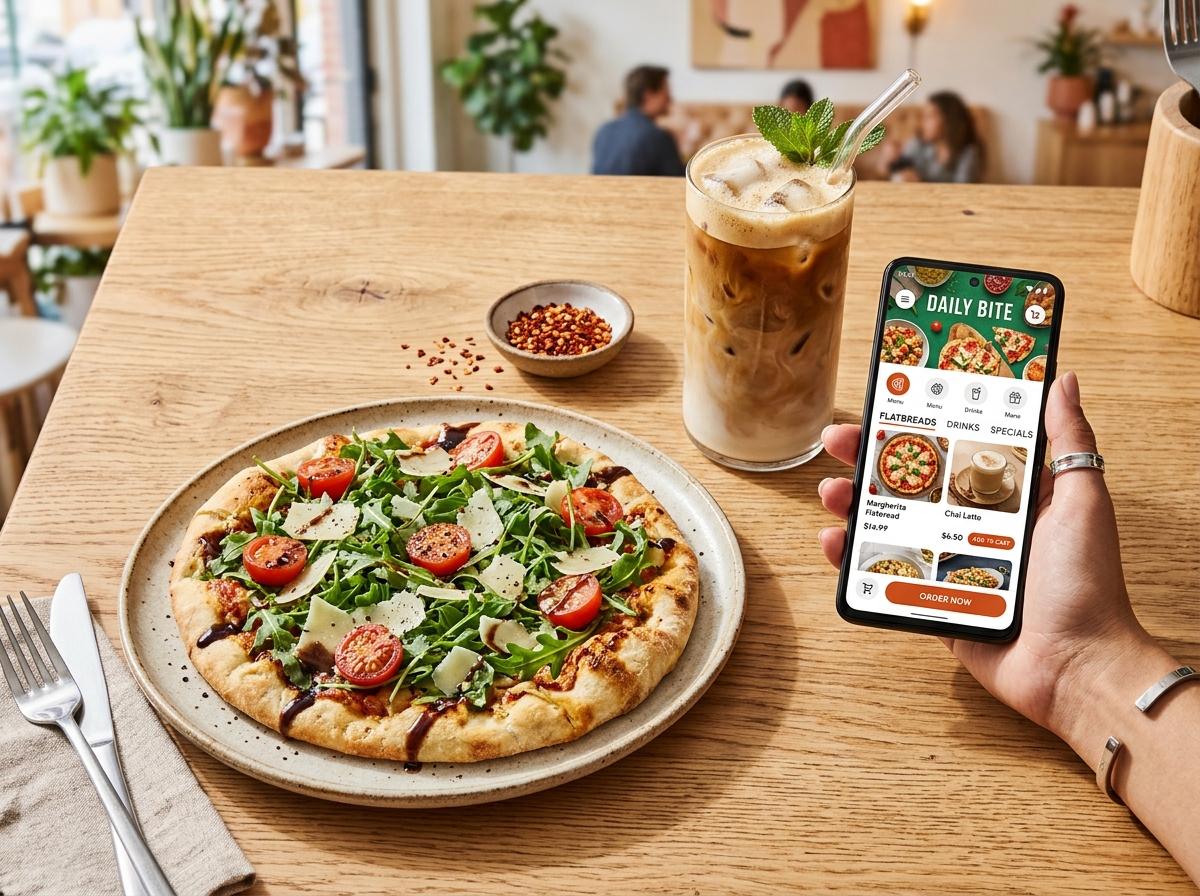
Sample promotion
Featured menu items
Pepperoni
$14.00
Margherita
$12.50
Four cheese
$15.00
Your order
Apple Pay · Google Pay · Card · Cash
Example storefront preview with menu categories, a cart, and checkout.
Start with the order journey, then map the work behind it.
Ordering Web
Design the storefront around a real order journey.
Customer journey
Start with the menu, service choices and order steps customers need to understand before they place an order.
Brand and domain
Discuss the brand expression, domain setup and responsibilities for your website.
Operational readiness
Identify the hosting, availability and support expectations that need an explicit project agreement.
Implementation approach
Choose the appropriate configuration or implementation path after confirming the customer journey and technical requirements.
Clarify the storefront decisions before implementation.
All featuresMenu structure
Define the categories, products and choices customers must see to place the right order.
Checkout scope
Confirm the payment, account and checkout requirements that apply to the selected market and project.
Service choices
Map the fulfillment choices customers need, including the store, timing and handoff that each one requires.
Location model
Identify how customers find the correct store and which location rules need to be supported.
Order communication
Decide which status, service and follow-up communications belong in the customer journey.
Public information
Plan the storefront pages and local information customers need before they start an order.
See Ordering Web in action
See the marketplace journey customers move through.
Start with a business, choose from its menu, review the cart, and return to the order detail. The views below show these moments across the web experience.
Discover
Find businesses that fit the customer's location.
Customers can set a delivery address, explore categories and filters, or use a map to move from a broad marketplace to a business listing.
YOUR SETUP
Choose the location, categories, filters, and businesses that belong in your marketplace.
Healthy
Fresh bowls just launched
Order now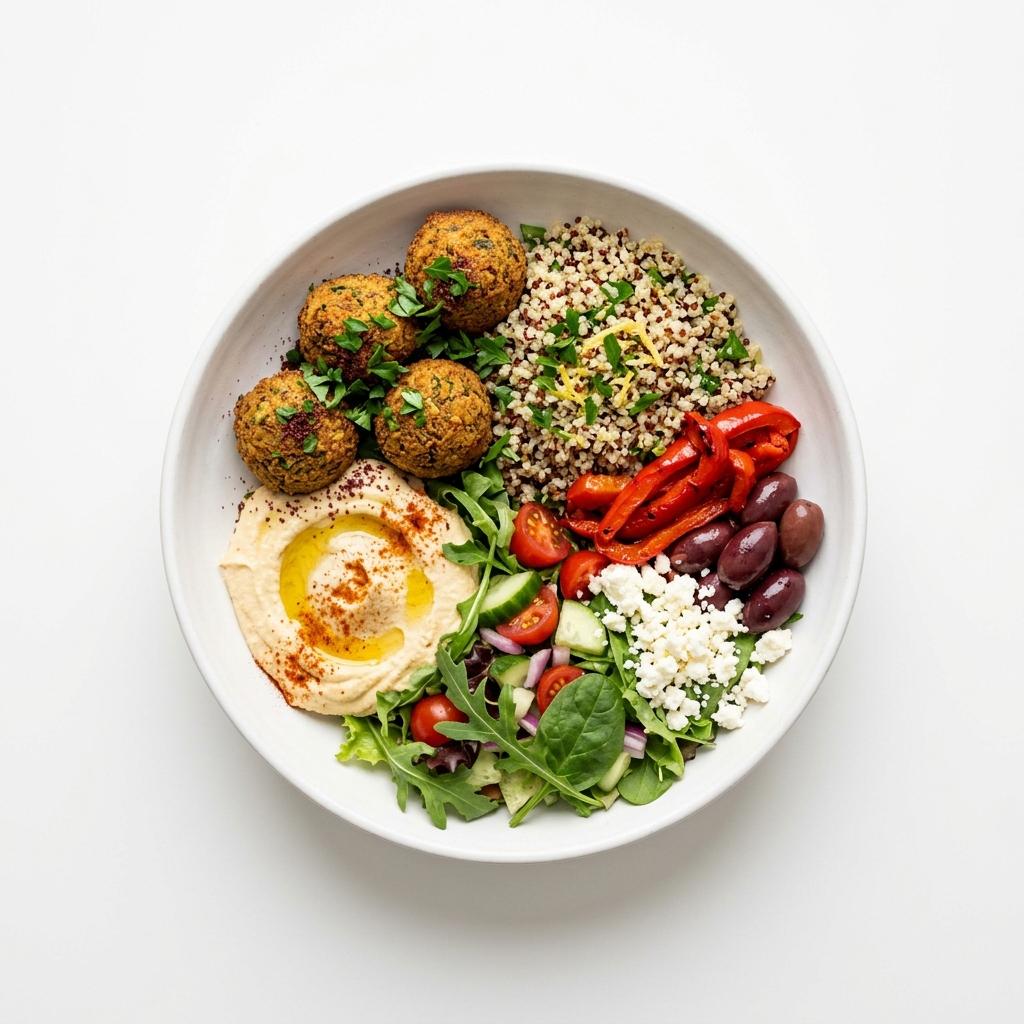
Top Businesses
Sponsored
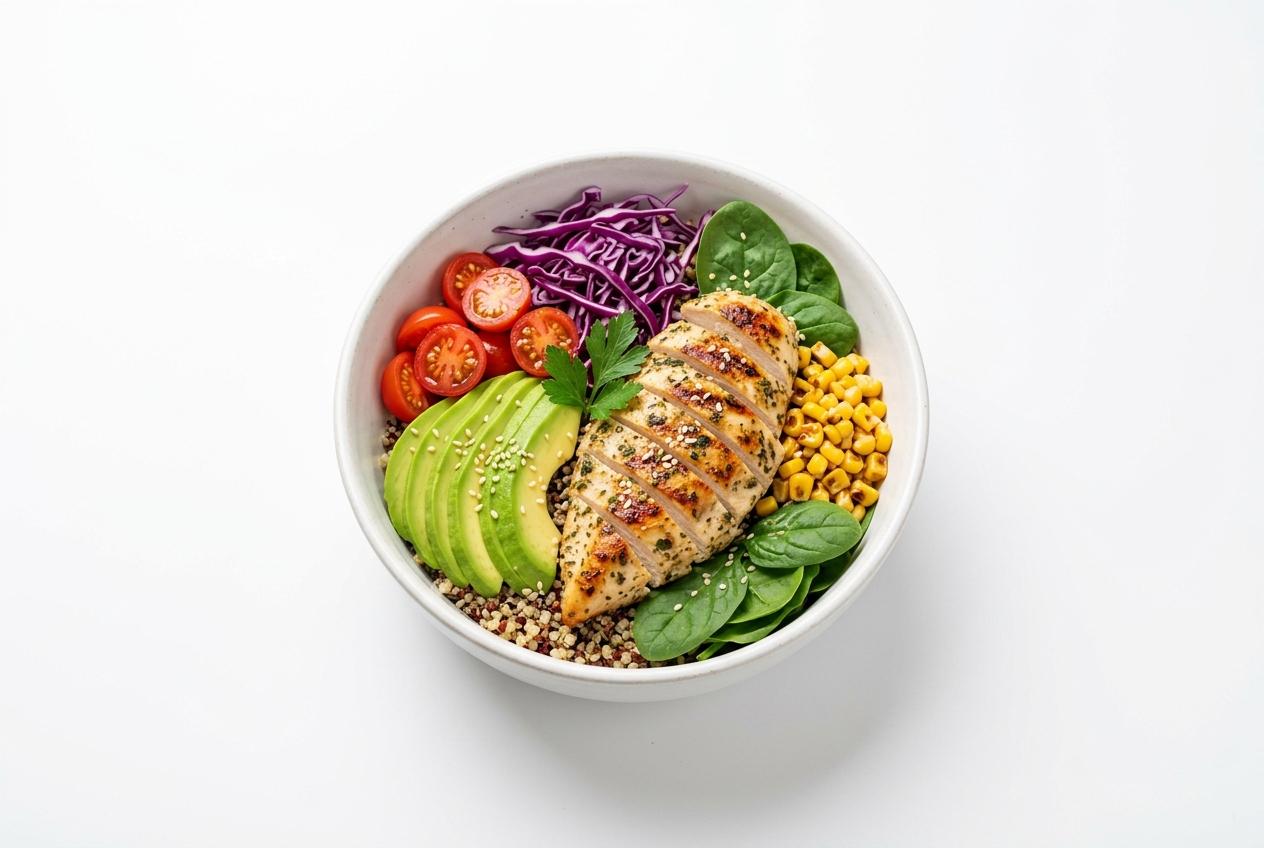 10% off
Fast Bite
25 min
10% offChick-fil-A
20 min
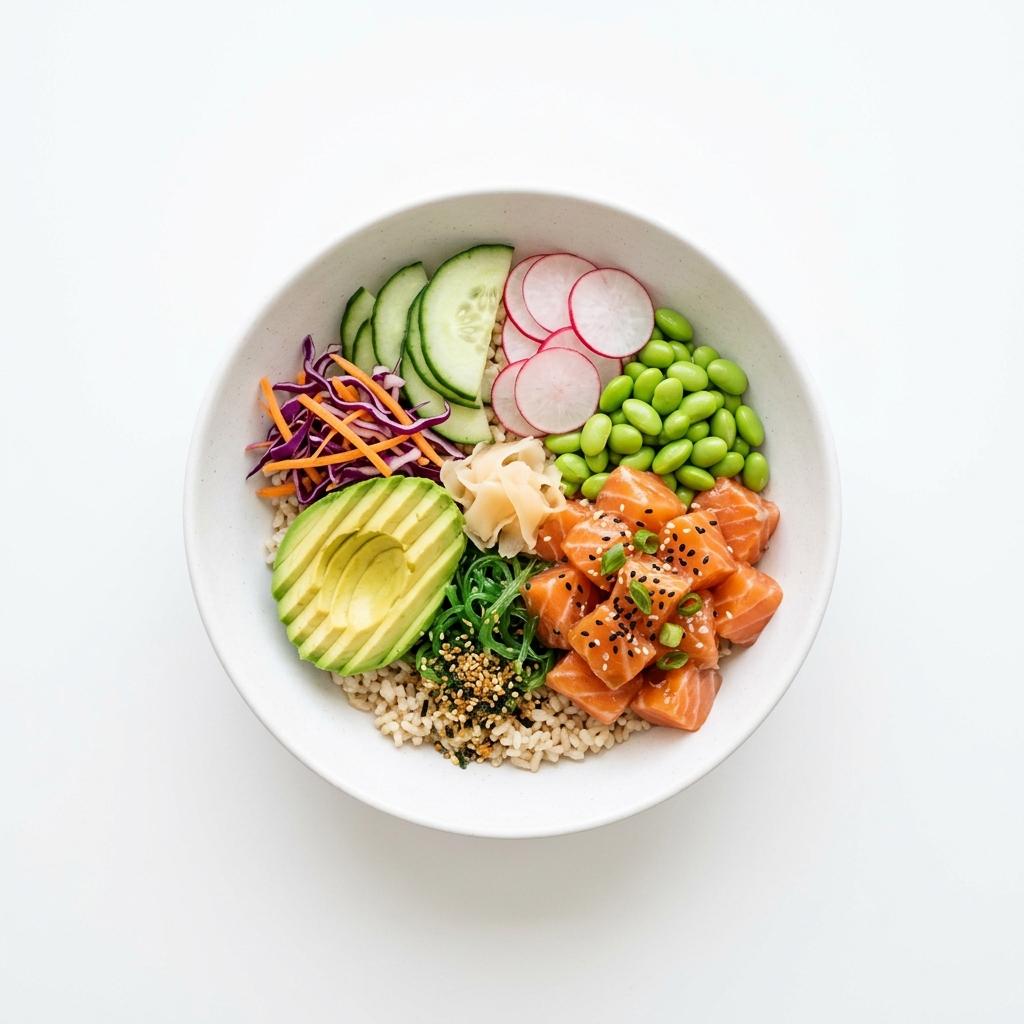 10% off
Fresh Patio
30 min
 10% off
P.F. Changs
35 min
 10% off
Panera
18 min
See 3 more web views
- • Set a delivery address before exploring nearby businesses.
- • Compare businesses with categories and delivery details in view.
- • Browse businesses, open a menu, and begin an order on the web.
Choose
Turn a business listing into a menu choice.
A business page brings together menu categories, product images, prices, and item options. Customers can review an item before adding it to the cart.
YOUR SETUP
Define the menu, options, upsells, and relevant offers each business can show.
WAGAMOTO
MODERN ASIAN CUISINE
Wagamoto
2950 Clarendon Blvd, Court House, VA 22201
0.00 $
Delivery fee
25min
Delivery time
Favorites
Bowl + 2 Bao
Bowl + 3 Potstickers
6 Pack of Bao
See 4 more web views
- • See featured menu items and prices together.
- • Move between menu categories to find an item.
- • Review product options before adding an item.
- • Choose item extras before adding to the cart.
Place
Keep the cart and checkout choices clear.
Customers can review items, choose delivery or pickup where offered, enter order details, and see the payment choices and total available for that order.
YOUR SETUP
Confirm fulfillment, payment, fees, offers, and loyalty choices for your project.
Sample promotion
Featured menu items
Pepperoni
$14.00
Margherita
$12.50
Four cheese
$15.00
Your order
Apple Pay · Google Pay · Card · Cash
See 3 more web views
- • Edit quantities and review the cart subtotal.
- • Keep customer information and fulfillment choices together.
- • Review the payment and loyalty choices available for the order.
Follow up
Give every order a place to return to.
Order details show the items and status. The web experience also shows a rating prompt and a way to start another order.
YOUR SETUP
Choose the status updates and return visit actions your customers should see.
Live order
Order #48291
2× Green bowl · 1× Street corn · $30.50
- Order accepted7:02 PM
- In the kitchen7:08 PM
- On the wayETA 8 min
- DeliveredEst. 7:24 PM
See 2 more web views
- • See ratings alongside featured menu items.
- • Give returning customers a way to sign in.
Ordering Widget
Decide where ordering belongs in your web experience.
When an existing website is part of the customer journey, use the project conversation to choose the placement and flow that should lead into ordering.
Example entry points; availability depends on your plan.
Before you launch
Try changes on a staging site before customers see them.
A staging version of your ordering website is a separate copy of the live site, used to test changes before they reach customers.
Where you use it: Your project setup, alongside the live storefront
See order and product reportsWhat a staging site is for
- Test new menus, pricing rules, themes, and integrations without touching live customer traffic.
Why it matters
- Fewer surprises at launchBugs and issues get caught on staging instead of in front of customers.
- A team ready on day oneStaff who have already practiced on staging can support customers as soon as the site goes live.
Cart and checkout
Customers review everything before they pay.
Customers browse the menu, pick items, and finish the order from one screen, with a cart they can change until the last step.
Where you use it: Ordering Web and customer apps
Explore payment integrationsOne screen to order
- Keep items, quantities, fulfillment details, and payment methods in one clear flow.
Why it matters
- Fewer order mistakesA last review of items and payment details catches errors before the order reaches the store.
Search visibility
Pages and images that search engines understand.
SEO settings let you describe your platform, stores, products, and images the way you want them to appear in search results.
Where you use it: Dashboard, for Ordering Web
What you can set
- Custom page titles, meta descriptions, friendly URLs, and image alt text across stores and categories.
Why it matters
- More customers from searchClear descriptions help the right customers find and choose your website in search results.
Built-in help
Answers inside the ordering experience.
A help section inside your ordering channels gives customers and your team a place to find answers without leaving the site.
Where you use it: Ordering Web and customer apps; content edited from the Dashboard
What the help section includes
- Editable guides, FAQs, and order-support content managed centrally from the Dashboard.
Why it matters
- Fewer repeat questionsCustomers resolve common questions themselves, so your team spends less time on them.
One infrastructure
Map the storefront to the work behind an order.
Use the planning map to identify the menu, store, fulfillment and system connections that must be reviewed with the selected customer journey.
Project decisions
Agree the implementation path before launch.
The project should record the storefront design, content ownership, integrations and technical responsibilities that its chosen ordering journey requires.
Brand expression
Clarify the brand assets, pages and content ownership required for the storefront.
Content needs
Identify the public information customers need before they reach the menu.
Technical connections
Identify which system connections or implementation decisions must be evaluated with technical owners.
Delivery responsibilities
Confirm the hosting, implementation and support responsibilities included in your plan.
Let customers select a future order time within the configured schedule.
Advance ordering uses the availability returned for the business, order type, and Website configuration, rather than a universal list of delivery slots.
When preorder is available, the customer chooses a date and then an offered time before continuing to the menu. Depending on configuration, availability follows business hours or a selected menu schedule and the business timezone.
Test the enabled order type, future-date range, store or menu hours, and the cart after changing the schedule. For curbside, also agree the pickup identifier and staff handoff.
Distinguish order tracking from a portal that hides internal rates.
Website order details can show status, fulfillment information, products, and saved customer totals. Conditional rows can include taxes, fees, delivery charges, tips, or refunds.
The customer’s order charges are different from your negotiated carrier or internal commercial rates. Define the fields customers may see and review the signed-in view and any shared order-access link separately.
Plan your storefront around the operation.
Use a demo to review the customer journey and confirm the website, domain, payment, integration and fulfillment scope relevant to your project.
Product guide: Website overview